Windows 11
Windows 11 users know that the program files are stored in the C: Drive, which is often used for system installation, and all apps and programs are stored there by default.
However, you can change the installation location on the App Installation Wizard. It allows you to select different folders and drives for storing program files.
If you install different apps and programs in different folders or drives, you may forget the actual installation route at some point. In that case, you need to rely on a few methods to find apps or programs.
By the way you can download windows 11 from Microsoft Store.
It is very easy to find the installation directory of any app or game on your Windows 11 PC. So, this article will list some of the best ways to find out where the program is installed on Windows 11 PC. Let’s check out.
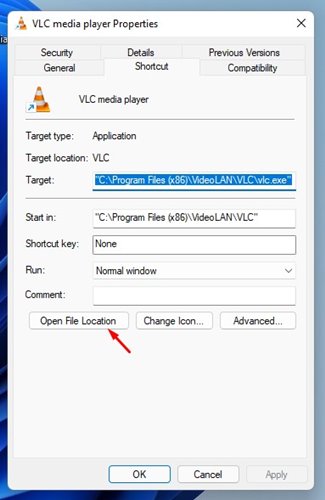
The app icon that appears on your desktop screen can find the installation folder. Here’s what you need to do.
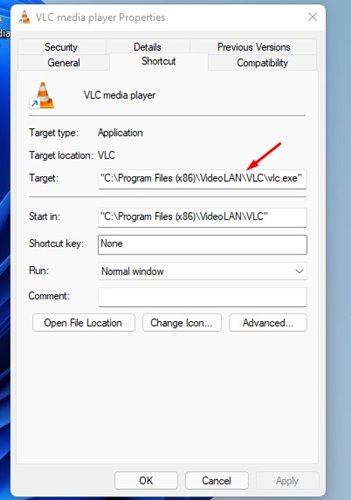
2. You will find the installation path on the Target Field.
3. Alternatively, click on the Open File Location button to open the installation folder directly.
That’s it! You are done. This is how you can locate the app’s installation folder via a desktop icon.
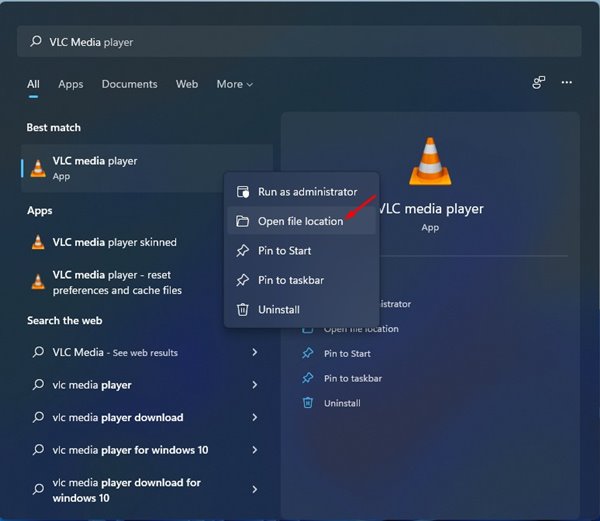
We’ll use the Windows 11 Start menu to find app and program space in this way. Here are some simple steps you can take to begin the process of preparation for mediation.
2. Select the program and right-click on it. Next, select the ‘Open File Location’ option.
That’s it! You are done. This will take you to the Location where it stored the program after the installation.
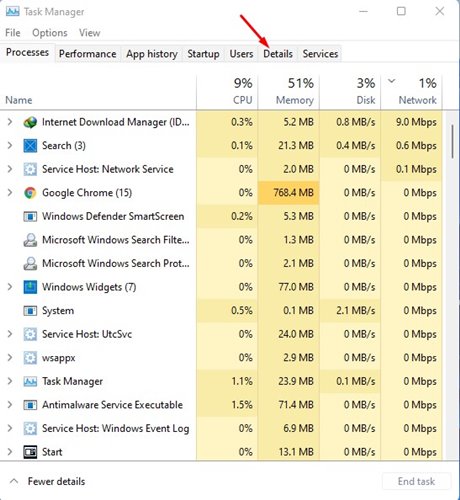
You can also use Task Manager on Windows 11 to locate apps and programs. Here’s what you need to do.
2. On the Task Manager, switch to the Details tab as shown below.
3. Now, you will find all processes & applications running on your system.
4. Find your application, right-click on it, and select Open File Location.
That’s it! This will start the installation folder of your application.
Finding the app’s location on Windows 11 is easier than on Windows 10 and Windows 7.
These three methods will help you find the installation directory of any app or game on your Windows 11 PC. We hope this article helps you! Please share it with your friends too.